Showing posts with label SharePoint 2010. Show all posts

Sunday, February 10, 2013

Step by Step Procedure to Migrate sites from SharePoint 2010 to SharePoint 2013

Hi Again,

In this post, I will show how to migrate sites from SharePoint 2010 to SharePoint 2013.

Steps for Migrating SharePoint 2010 site to SharePoint 2013

1. Take backup of SharePoint 2010 Content database
2. Restore the SharePoint 2010 Content database in SQL Server 2012


3. Create a claims based web application. I want to use windows authentication. So I have selected “Enable Windows Authentication” checkbox while creating new web application.


4. Note that classic authentication mode is removed by default in create web application page. You can create classic web application using PowerShell only.

5. We see that web application is created in Central Administration page
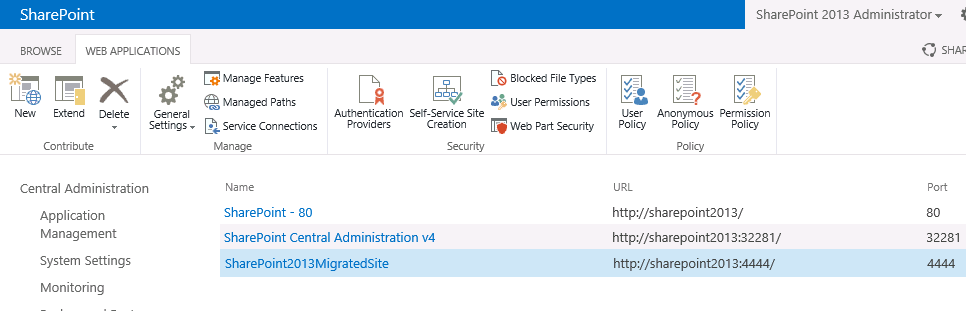


6. Open “SharePoint 2013 Management Shell” as Administrator
7. Detach the content database for the newly created web application using the below PowerShell command
    Dismount-SPContentDatabase -Identity "WSS_Content_SharePoint2013DB_4444"


8. Attach the Restored SP2010 Content database to the newly created SP2013 Web Application using PowerShell command

Mount-SPContentDatabase -Name WSS_Content_SharePoint2010ContentDatabase -DatabaseServer SHAREPOINT2013\SHAREPOINT -WebApplication http://sharepoint2013:4444/


9. Depending on your project requirements, you may need to perform additional tasks
  • Update Web.config with
    • Connection strings to database (In case custom database is used)
    • Safe controls for Dll’s
  • Update Visual Studio code to VS 2010 (Applicable if 14 hive was used by your code. This needs to updated to 15 hive)
  • Update master page and page layouts to use dll’s of version 15.0.0.0. Note that we still have 14.0.0.0 version for Master page and Page layouts even after migration   
10. Browse the SharePoint 2013 site now and I got an access denied error as shown below


11. This is because the content database has got primary and secondary administrators of SharePoint 2010 site. This is not valid in my case since SharePoint 2013 is on another domain as shown below


12. Hence, I need to change the primary and secondary administrators to valid users as shown below and click OK to save changes

13. Welcome to your SharePoint 2013 Site! :)


14. Note that we are still in SharePoint 2010 UI. We also got a message to experience SharePoint 15 features. Click Start now

15. We get an “Upgrade Site Collection” page. Click “Upgrade this site collection”


16. We get a popup. Click “I am ready”. Note that in SharePoint 2010 Visual upgrade, even though the site has been updated to SharePoint 2010 UI, we can still revert back to SharePoint 2007 UI using PowerShell. This is not the case with SharePoint 2013. Once the site is converted to SharePoint 2013, this cannot be reverted back to SharePoint 2010. 


17. You can see the upgrade status in Site Upgrade Status page 
       (http://<SiteUrl>/_layouts/15/siteupgradestatus.aspx)
       
      Upgrade Screen 1


       Upgrade Screen 2


18. Once, the upgrade is completed, we get a Upgrade Successful message


19. And, finally, here is our SharePoint 2013 site! :)


20. Everything got migrated properly without any issues. Kudos to the Microsoft SharePoint team for doing such an excellent job. Cheers!

Friday, January 11, 2013

Making solutions for SharePoint 2010 in VS 2010 work in SharePoint 2013

Hi All,

We all know that in SharePoint 2013, the SharePoint Root was renamed to 15 hive. Microsoft has been doing this for every new SharePoint release. For instance, in MOSS 2007, it was called as 12 hive and in SharePoint 2010, its called as 14 hive.

Now, we have a Visual Studio project that was created for SharePoint 2010. When we try to deploy this solution on SharePoint 2013, all files targeted to sit in SharePoint Root was actually copied to 14 hive instead of copying in 15 hive.

The reason for this is in solution's manifest file, we have an attribute for <Solution> tag called as SharePointProductVersion which was set to 14.0. This is the reason for the files to be copied to 14 hive.


Now, to make the solution work for SharePoint 2013, we just need to change version from 14.0 to 15.0.

Hope this helps someone out there. Cheers!

Wednesday, December 19, 2012

People Picker to add users to SharePoint 2010 group - Namespace prefix 'xsd' is not defined

Hi All,

We have recently migrated from SharePoint 2007 to SharePoint 2010. Upon trying to add users to SharePoint group, we got the below error:

System.InvalidOperationException: Namespace prefix 'xsd' is not defined.    at System.Xml.Serialization.XmlSerializationReader.ToXmlQualifiedName(String value, Boolean decodeName)     at Microsoft.Xml.Serialization.GeneratedAssembly.XmlSerializationReaderDictionaryEntryArray.Read1_Object(Boolean isNullable, Boolean checkType)     at Microsoft.Xml.Serialization.GeneratedAssembly.XmlSerializationReaderDictionaryEntryArray.Read2_DictionaryEntry(Boolean checkType)     at Microsoft.Xml.Serialization.GeneratedAssembly.XmlSerializationReaderDictionaryEntryArray.Read3_ArrayOfDictionaryEntry()

The problem here is we have a known issue with people picker not working properly in IE9..

Possible Resolutions:

Solution 1 (Temporary Solution)

Change the Document Mode to IE-8 using IE - developer toolbar as shown below


Solution 2 (Permanent Solution)

In System master page, change the content attribute in meta tag from IE-9 to IE-8 as shown below.

<meta http-equiv="X-UA-Compatible" content="IE=8"/>

Hope this helps some one. Thanks !!!

Sunday, December 16, 2012

This item is no longer available. It may have been deleted by another user

Hi All,

We have recently migrated to SharePoint 2010 from MOSS 2007. Everything works great except that for all out of the box libraries like Pages, Document libraries, up on trying to click context menu, we get below error:

"This item is no longer available. It may have been deleted by another user".


Resolution:

1. Edit the pages library/(or documents library) page that is causing this problem and edit the properties of pages web part. Then save the page without modifying anything.

2. Now, i see that context menu is working fine without any issues.
Not sure if this is the right approach but i believe this error is because of List View webpart. Upon saving, this is saving correctly with out any xsl errors. 
Hops this helps some one. You can also follow my msdn post for this error here

Value does not fall with in expected range error with SPListItem

Hi All,

We got the below error while trying to retrieve list item data using SPListItem.

"Value does not fall with in expected range".

This happens only with few columns. We get this error while trying to get data from a lookup column.The list we are trying to get data from has 12 lookup columns. But SharePoint list by default can have only 8 lookup columns to be able to successfully queried. Of course, Farm administrators can query data with out any problem but for normal users, we get the above error.

Resolution:

1. Select the web application and click Resource Throttling


2. We have a setting called "List View Lookup Threshold". This is set to 8by default as shown below. 


3. We changed it to 13 since our list already has 12 lookup columns. After doing so, even normal users are able to query list without any problems.

Hope this helps some one.

The specified file is larger than the maximum supported file size.

Hi All,

We got the below error when trying to upload a file of size 1GB in document library.

"The specified file is larger than the maximum supported file size."


SharePoint 2010 by default allows file size upto 50MB. However, we can change this setting by few simple steps.

1. Select the web application and click General settings


2. We have a setting called Maximum Upload size. This is set to 50MB by default as shown below. Change it to the size as per your requirement and you are good to go!


Wednesday, September 5, 2012

Cannot make a cache safe URL for "styles/~/SampleProject/StyleSheet.css", file not found. Please verify that the file exists under the layouts directory.

Hi All,

While trying to register a CSS file in SharePoint using CSSRegistration class as:

// Register CSS File
CssRegistration.Register("~/_layouts/SampleProject/StyleSheet.css");

We got the following error:

"Cannot make a cache safe URL for "styles/~/SampleProject/StyleSheet.css", file not found. Please verify that the file exists under the layouts directory".


One of the benefits of using SharePoint:CSSRegistration is that it prevents multiple loading of same CSS file. For Example, if we try to register a CSS file multiple times as:


// Register CSS File
 CssRegistration.Register("/_layouts/SampleProject/StyleSheet.css");
 CssRegistration.Register("/_layouts/SampleProject/StyleSheet.css");
 CssRegistration.Register("/_layouts/SampleProject/StyleSheet.css");
 CssRegistration.Register("/_layouts/SampleProject/StyleSheet.css");

The final rendered Page will have only one instance of this style sheet.

Ok. Coming back to the problem, the Resolution is to remove ~ in the URL. Hence, the correct statement would be:


// Register CSS File
 CssRegistration.Register("/_layouts/SampleProject/StyleSheet.css");

Here is a good source to know more about SharePoint:CSSRegistration:
http://tommdaly.wordpress.com/2012/05/02/sharepoint-cssregistration-or-link/

Thanks !